How To Unlock Oxva Xlim Pro: Step-by-Step Button Lock Instructions
You want quick access to your OXVA Xlim Pro without guessing or wasting time. The lock feature keeps it safe in your pocket, but it can feel confusing if you do not know the exact move.
You unlock the OXVA Xlim Pro by pressing the fire button five times quickly until the screen turns on and responds. Once unlocked, you can vape, adjust settings, and check battery levels with no limits.
This guide shows how to unlock it fast, what to do if it stays locked, and how to avoid common mistakes. You stay in control of your device and avoid stress.
Key Takeaways
- You unlock the OXVA Xlim Pro with five quick button presses
- Simple checks help if the device does not respond
- Clear steps keep your device working as expected
Unlocking the OXVA Xlim Pro: Step-by-Step Methods
You can unlock the OXVA Xlim Pro in a few clear ways. The device uses a button sequence, menu controls, and screen icons to show lock status and confirm changes.
Primary Unlock Sequence
To unlock OXVA vape devices like the OXVA Xlim Pro, use the fire button sequence. Hold the device upright and make sure it has power.
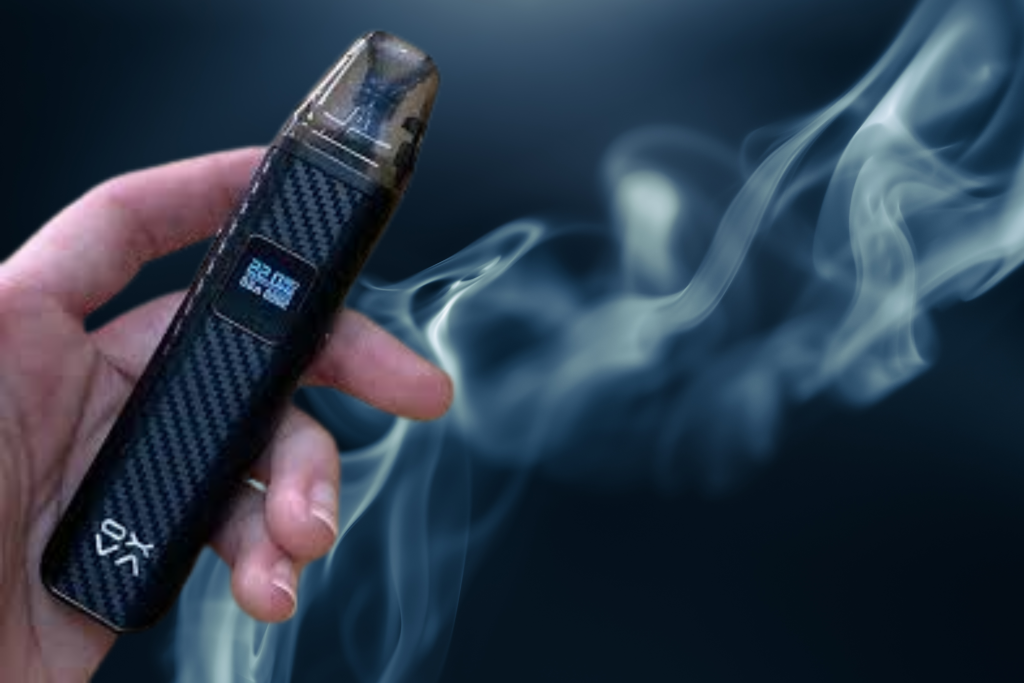
Press the fire button five times fast within two seconds. The OLED display should wake up and show a change in status.
If the device stays locked, repeat the sequence with steady timing. Do not press too slow or too fast.
Once unlocked, the fire button will respond, and wattage controls will work again.
This method works even if auto-draw is enabled. Auto-draw may still fire while locked on some units, but the button stays disabled.
If your unit acts different, check the user manual for your specific firmware.
Fire Button and Menu Options
You can also unlock through the settings menu if your device allows it.
Press the fire button three times to enter the menu. Use short presses to scroll.
Look for options like Lock, Unlock, or Button Lock.
Select the option by holding the fire button for one second.
Some OXVA units lock only the fire button and leave auto-draw active. Others lock both.
The menu will show which parts are locked, so read the screen carefully.
If the menu does not open, the device may be fully locked. Use the five-click method first.
This approach helps when you want to confirm settings instead of guessing.
Understanding the device’s buttons and menus is part of its user interface, which explains how users interact with technology.
Visual Indicators of Lock Status
The OLED display shows clear signs when the device is locked or unlocked.
Watch the screen after any button sequence.
Common indicators include:
| Display Icon or Text | Meaning |
|---|---|
| Lock icon | Device or button is locked |
| No icon | Device is unlocked |
| “Locked” text | Button input disabled |
| Wattage visible | Controls are active |
Some units flash a lock icon when you press the fire button while locked.
Others briefly show text, then return to the main screen.
If the screen stays dark, charge the device before trying again.
For exact icons and messages, check the OXVA user manual for the OXVA Xlim Pro.
Essential Tips and Troubleshooting
This section focuses on fixing unlock problems, using the lock feature safely, and keeping your device in good working order. You will also learn how battery care and routine upkeep prevent repeat issues.
Common Issues and Solutions
Unlock problems often come from timing errors or low power. Press the fire button five times quickly to unlock. If nothing happens, check the screen for a lock icon.
Quick fixes
- Low battery: Charge the 1000mah battery for 30–60 minutes.
- Button delay: Press faster and with steady rhythm.
- Screen off: Wake the device with one press, then try again.
| Issue | What You See | What to Do |
|---|---|---|
| Won’t unlock | No response | Charge via the charging port |
| Unlocks then relocks | Screen flashes | Press five times faster |
| No vapor | Unlocks but dry hit | Replace pods or refill |
If problems continue, test with replacement pods. Pod faults can block firing. If your device still fails, contact customer support and check your warranty status.
Lock Feature Safety Benefits
The lock feature prevents firing in your pocket or bag. This reduces coil damage and saves e-liquid. It also protects children from accidental use.
Use the lock when you travel or store the device. Locking also helps keep settings stable across OXVA Xlim models. You avoid surprise power changes that can burn pods.
Best times to lock
- Carrying in a pocket
- Storing overnight
- Cleaning the device
Unlock only when you plan to vape. This habit lowers wear on the button and extends pod life.
Battery and Maintenance Advice
Good vape maintenance keeps unlocking smooth. Clean the pod contacts weekly with a dry cotton swab. Moisture or residue can block power.
Charge the 1000mah battery with a stable power source. Avoid fast chargers not made for vapes. Plug the cable firmly into the charging port and keep lint out.
OXVA vape maintenance tips
- Do not overcharge; unplug at full.
- Store between 50–77°F.
- Replace pods when flavor drops or leaks start.
Routine care reduces errors and extends device life. If you notice swelling, heat, or charging issues, stop use and contact customer support under your warranty.
Frequently Asked Questions
These answers explain how the device opens, how pod parts change, where to find official instructions, and how to handle the device safely. Each point reflects the OXVA Xlim Pro’s actual design and use.
What are the steps to access the battery compartment in the OXVA Xlim Pro device?
You cannot access the battery because the OXVA Xlim Pro uses a sealed, built-in battery. The device does not have a removable battery door.
You charge the battery through the USB‑C port at the bottom of the device. Do not attempt to open the body.
Can you provide guidance on changing the coil in the OXVA Xlim Pro pod?
The coil is built into the pod and cannot be removed on its own. You change the coil by replacing the entire pod.
Pull the pod straight out, fill a new pod with e‑liquid, let it sit for a few minutes, then insert it back into the device.
Where can I find the instruction manual for the OXVA Xlim Pro?
You can find the manual in the original product box. Many packages also include a QR code that links to the manual.
You can download the manual from the official OXVA website under the support or product section.
Is there a specific tool needed to unlock or open the OXVA Xlim Pro?
You do not need any tools to open or use the device. The pod attaches with magnets and pulls out by hand.
If you need to unlock the device for use, press the fire button five times quickly to toggle the lock.
What safety precautions should I take when attempting to unlock the OXVA Xlim Pro?
Turn the device off before handling it to prevent accidental firing. Keep the device dry and clean.
Do not force any part open or use sharp tools. Use only genuine OXVA pods and charge with a compatible USB‑C cable.